Showing posts with label Android. Show all posts

Coders Portal: Best Android App for Coders / Programmers / Developers


The app combines the knowledge from various fields of Computer science.

This App enriches the knowledge of the user, one who goes through Lab Experiments, Programming eBooks, and Quiz.
1. Lab Experiment: Detailed Experimental Knowledge.
2. Programming eBooks: 100+ eBooks categorized.
3. Programming Quiz: Unique set of Questions for different Programming Languages.


1. Lab Experiment:Detailed Lab Experiments from various fields which comprises of:
- Computer Programming
- Data Structure
- Operating System
- System Programming
- Network Programming
Each of these categories consist of large collection of programs.
In each experiment, Problem Statement, Algorithm, Program Development and Output are summarized.


2. Programming eBooks:
200+ eBooks from various fields are categorized.
Most of these category contains multiple eBook inside it as for Basic, Intermediate, and Advanced Users.
No need to download the eBook, you can read it directly from the App.


3. Programming Quiz:
Test your knowledge on unique sets of question.
Find your deficiency by the help of categorized question sets.
Enhance your reaction time by setting new High Score.

Dev Utils : Amazing App for Android Users


Download Now

Manage Apps, Access Hidden Android Settings, Offline Tutorials, and USSD Codes.


Dev Utils is an App for Developers that provides access to in-depth Settings, help you to manage System and Installed Apps, provide latest Tutorials in Offline and Online Mode for tweaks and tricks, and a lot of USSD Codes to make your life easy. All at a single place.

#includes:-

* Manage Apps
- Detailed Description of System and Installed Apps.
- Directly open the App, App Info page in Settings, and the Play Store for respective Apps.
- Directly uninstall the apps.
- Create/Extract and Share apks of All Apps in seconds.
- Search Feature is also provided.

* Hidden Android Settings
- Direct Access to all the Settings page.
- Time Saver as you don't need to keep searching for specific settings in your Phone
- Search Feature is also provided to access specific Settings

* Tips n Tricks
- All the latest Android tweaks and tricks.
- Available in Offline mode.
- Online Tutorials are also available for in-depth discussed steps.

* Chatting feature with Admin and all active users.

* USSD Codes
- All the USSD Codes for Smart Phones.
- Categorised on the basis of :
- Device Manufacturer
- Sim Operators
- Direct call and share feature is also provided for the codes.


Download Now :

Top 5 hidden features you must check out in Android Developer Options

Whenever we have talked anything related to accessing Android using the computer through ADB, we have always asked you to enable Developer Options to enable USB Debugging so that the computer can read your Android device through the ADB bridge. But that’s what we have all stuck to in all our articles and never paid much attention to other options available in the settings. Basically, Developer Options is meant for developers to try different things while developing apps/features on Android, but some of these features are so cool that it’s worth checking them out.


If this is the first time you are exploring Developers Option, chances are that you will not find it in the Android Settings menu. You will have to open the About page in Settings and then tap the Build Number 7 times until you see a notification that the developer options are enabled. You can now access the menu from Android settings.

Now that the Developer Options are enabled, and you have turned them on, let’s talk about the first 5 features that you must check out.

1. Enable Grayscale Display Settings
Using this feature, you can turn your Android’s display monochrome which can be helpful if you are into reading on your android device. In the developers option, find the option Stimulate colour space and tap on it. From the options select Monochromacy and save the settings. Your entire Android experience will now be in monochrome colors.


There are so many ways you can use this feature. Users with AMOLED display on their Androids can turn on the feature when they are serious about conserving power on the device. Reading buffs can also use the feature to reduce eye strain.

Note: Any screenshots taken in this mode will be colored. It’s only the display that changes.

2. Fake GPS Location (Allow Mock Location)
Using this feature, you can use various apps available on the Play Store to fake the GPS location that’s used by other apps on your device. You will find an option that says Allow Mock Location, just tap on it and you are ready to go.


Now download an application called Fake Location Spoofer Free. The app will ask you to set a location on the map and once you have set a location, other apps and services will be using the same location that’s being spoofed by the app. You might have to switch to GPS Only Mode from High Accuracy that uses Wi-Fi as a secondary input source to fetch your location for best results.


3. Tweak Animation Speed
When you navigate on your Android, you will notice that when the screen changes, there are some animations that Android adds for smoothness. It’s like overlapping the two frames so that it doesn’t appear cut off, much like cross-fading in audio and videos. However, these settings are only there for the look and feel and can be disabled to increase overall speed.


Scroll down in the Developers Option and look for Window animation scale, Transition animation scale, and Animator duration scale. Here, lesser the number the faster are the animations. If you don’t care about speed, but want the transactions smoother, simply increase the values.

Cool Tip: Make all the values as 10 and then play the hidden Lollipop game. I am sure you will break all the records.

4. Display CPU Usage on Overlay Screen
Ever wondered how much of the CPU you are using on Android at any given time? There are a few apps on Play Store using which you can get the information, but through Developers Option, the values can be obtained without any apps and that too in real-time.


In the Developer Options, look for Show CPU Usage and check the options. That’s all; you will see an overlay of your current CPU usage on the right side of the screen. You will also get the package name of the apps which are active in the background. The information is just to show off the skills of Developer Options and should be kept disabled to use the phone.

5. Stay Awake while Charging
Many users who have the habit to keep the phone on a charging cradle in office, or on a dock near the bedside can keep the screen awake all the time. Just look for the option Stay Awake and check it to enable the option.


The device will not go to sleep while the phone is charging and can be handy in quite a few scenarios.

Conclusion
That’s just the beginning. There are so many other options to explore in the Android’s Developer Menu. So explore these options and share with us any other features you find useful for other Android users.

How to access System(Root) files in Android Phones

Rooted Android phones provide many additional benefits when compared to a non-rooted phone and that’s because we can read and modify system files. Now the thing is, most of the time when we have to modify system files, we use an app or script to apply the updates directly. Not always convenient though.

Sometimes, we might need to edit and update certain system files manually in order to apply some custom mods and patches and that’s when we need a root file explorer. There are many apps in the market (some of which are paid) that claim to do the task, but we will see how to use ES File Explorer, one of the most trusted file explorer apps, for the task.
ES File Explorer as a Root Explorer


Launch ES File Explorer and open the app’s settings by pressing the menu soft key. In Settings scroll down to Other Settings section and tap the option Root Settings.


Now in Root Settings, check the option Root Explorer and Up to Root. For the first time when you enable this feature, your phone will ask if you would like to grant the particular app root access on your phone. Select the Remember option and enable it.


You will now be able to view all the root files when you tap the up button instead of exiting the app. If you want to gain write access over system files, enable the option Mount File System. You can now edit system files on your Android manually.


You can also opt for the option to backup system files automatically before you modify and save a file. This makes sure that you always have a failsafe file on your device to roll back to if anything goes wrong.


Note: Please be very careful while editing system files. Always refer to reliable source if you are planning to apply any mod or patch to your device. Even a small mistake can put your phone in Force
Close or boot loop. You were warned!
Conclusion
So this was yet another great use you can put ES File Explorer to. Don’t forget to have a look on How to View saved WiFi password on Android device easily.

How to use custom DNS Settings in Android Mobile Phones


We have told you in previous post how to use custom DNS settings in Windows operating system to improve Internet connection speed and reliability:
How to Change or Use Custom DNS Server Settings in Windows?

Using custom DNS settings might become very useful if you are getting very poor Internet speed or if a website is blocked by your ISP(Internet Service Provider). With the help of custom DNS settings, you can get faster Internet speed and can access blocked websites.

But what if you are using Internet in your mobile phone and some websites are blocked by the network provider or you are getting slower Internet speed in your mobile phone?
You can set and use custom DNS settings such as "Google Public DNS" or "OpenDNS" in your mobile phone as well.

NOTE: You can only use custom DNS settings for Wi-Fi connections as Google Android doesn’t provide any option to use custom DNS for cellular data connections.

Following simple steps will help you in setting and using custom DNS settings in your Google Android mobile phone:

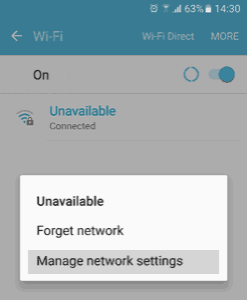
Step 1: First of all open Wi-Fi settings in your Android mobile phone. You can open Wi-Fi settings from Settings menu or tap and hold on Wi-Fi icon present in notification bar to directly open Wi-Fi settings.


Step 2: Now tap and hold on the desired Wi-Fi network and select “Manage network settings” or “Modify network” or other similar option.


Step 3: Now check “Show advanced options” checkbox and select “Static” option from the IP settings drop-down list.

Step 4: Now you can enter desired DNS settings in DNS 1 and DNS 2 boxes.


You can use any of following 2 popular DNS server settings:

Google Public DNS:
Preferred DNS server : 8.8.8.8
Alternate DNS server : 8.8.4.4

OpenDNS:
Preferred DNS server : 208.67.222.222
Alternate DNS server : 208.67.220.220

Step 5: At last save the changes and it’ll immediately start using custom DNS settings.

Done…

Best Computer Guide : App for Hackaholic Tech Geeks

Download Now


This App provides a huge collection of Ethical Hacking Tools, Tutorials and Computer Shortcut Command Keys...


#includes:-

Basic Ethical Hacking Terminologies
Offline Tutorials(250+)
Online Tutorials
Ethical Hacking Tools and Softwares(100+)

Ethical Hacking Network Tools :
 - GooG Search
 - Device IP Info
 - Hashing Encryption
 - Whois Lookup
 - Ping
 - Trace Route  - Port Scanner
 - Wake on LAN
 - Subnet Devices
Tech related feeds
Chatting feature with Admin and all active users

Mac OS Shortcut Keys
Unix Shortcut Keys
Linux Shortcut Keys
Windows 10 CMD Tricks
Win+ Shortcut Keys

MS Paint Shortcut Keys
MS Outlook Shortcut Keys
Wordpad Shortcut Keys
Notepad Shortcut Keys
Fn Keys Shortcut
File Explorer Shortcut Keys
Adobe Photoshop Shortcut Keys
Adobe Page Maker Shortcut Keys
Adobe Corel Draw Shortcut Keys
Android Studio Shortcut Keys
Google Chrome Shortcut Keys
Eclipse Shortcut Keys
Firefox Shortcut Keys
Internet Explorer Shortcut Keys
MS Word Shortcut Keys
MS Excel Shortcut Keys
MS Access Shortcut Keys
MS Powerpoint Shortcut Keys
Notepad++ Shortcut Keys
Sony Vegas Pro Shortcut Keys
Tally Shortcut Keys
Videoscribe Shortcut Keys

Color Hex Codes
Smileys Code
ASCII Code Value
Run Commands
Linux Terminal Commands

Download Now

How to Receive SMS Online without a Phone

It is very common nowadays that you will need to at least provide your email address in order to sign up for a service offered by a website or to participate in a discussion at a forum or even leaving a comment on a blog. If you don’t care about receiving a reply or are not comfortable in providing your real email address, there are many temporary disposable email addresses that can be automatically and instantly generate

Read More: For using without any hassle. The only drawback is the temporary email address can be accessed by anyone if they know the username unless like Hide My Ass Anonymous Email that offers password protection feature for better security.


Download our Android App Best Computer Guide


Because of this, the email verification system is not secure at all. This is why some websites have implemented a phone verification system where the user needs to provide a phone number to receive a randomly generated code via SMS or voice call and feed the code back to the website to confirm that you are a real user and not a spam bot. The aim of phone verification is very similar to CAPTCHA for determining real users and preventing the same user from having multiple accounts except it is done through a phone number. If for some reason you need to receive text messages online from your computer rather than your phone, here are top 10 sites to help you receive SMS online and show the code to you.

10. Twilio
Ironically, Twilio gives you a private phone number for free in the trial account if you provide them with your phone number to receive a verification code. Fortunately you can use any of the temporary phone numbers from the sites above to receive the verification code to activate Twilio trial account.


You can view your private phone number given by Twilio by clicking NUMBERS on the menubar on top of the page. To view the received SMS text message, click on LOGS followed by MESSAGES. Do note that the trial account of Twilio cannot send messages to unverified numbers but can receive SMS online from any phone numbers without problems.
Visit Twilio

9. Sellaite SMS RECEIVER
The country of the public phone number offered by Sellaite SMS RECEIVER to receive SMS online is Estonia, which is quite different from its competitors. We found that they are quite reliable because they are very quick to take down the phone number from the webpage if it doesn’t work. If you see a phone number available, it is very likely to work unless the SMS gateway can’t send a text message to Estonia

Simply click on the available online phone number on the webpage and the messages that the number has received will be shown.
Visit Now

8. Pinger Textfree Web
If you are having trouble signing up with TextNow because you can’t find a working US proxy or VPN, Pinger Textfree Web is a great alternative because anyone can sign up and use it for free. During sign up you will need to provide a valid US zip code (example 01001) which can be found by searching in Google. Then you are presented with a list of US phone numbers that you prefer to use.8.


If you can’t remember the phone number that you’ve chosen, simple click on Options and your phone number is displayed at the first line when your account information pops up.
Visit Now

7. TextNow
TextNow is a good option if you’re looking for a reliable and free private phone number that only you have access to the received SMS text messages. You will need to sign up for a free account and you’ll be automatically given a unique phone number. The only common problem that most people get is receiving a generic error message “Something went wrong with your signup. Please try again!” when trying to sign up. To solve this problem, all you need to do is use a US based VPN or proxy to perform a one time sign up and you can login normally using your own IP address.


Your personal unique US phone number to receive SMS online is shown at Account Details after logging in.
Visit TextNow


6. Receive-SMS-Online.com
2 weeks ago they had 7 phone numbers with only 1 from the US failing to receive our text message. Now they are showing 8 numbers but unfortunately none of them are working because their secondary domain name sms-verification.com seems to be down which makes it impossible for us to check for received messages. We’ll test and update the results once they are back up.


Visit Recieve-SMS-Online


5. GRE.im
This site occasionally spurts out warning error messages on top of the webpage. You can safely ignore it and simply scroll down to click on any of the publicly listed phone numbers to view the received text messages.


There used to be 7 phone numbers on this site but it’s been reduced to 4 after 2 weeks. Only the US number failed to work while the Hungary phone number is the most reliable.
Visit GRE.im


4. FreeOnlinePhone.org
If you’ve visited the third site (ReceiveSMSOnline.net) on this list, you’ll find that the design looks very similar except for the difference in color and that is because they are both created by the same company “Cicklow”.


2 weeks ago three US phones numbers are listed and none of them worked at that time. They have been replaced with 2 new phone numbers and are currently working.
Visit FreeOnlinePhone


3. ReceiveSMSOnline.net
Offers a total of 8 phone numbers with 3 from the UK and 5 from the US. Two weeks ago there were 7 numbers and an additional US number has been added to the list. After testing, 2 US phone numbers (+19282388889 and +19282388892) failed to receive the SMS test message that we sent.


Weirdly, the 2 numbers that failed to display the test SMS message sent by us showed that the last messages received were 12 and 21 minutes ago. So if you see a phone number that has recently received a message, it does not necessarily mean that it is fully working at the moment.

Visit Now


2. ReceiveFreeSMS.com
ReceiveFreeSMS.com offers 10 public phone numbers from 8 different countries (US, Norway, Sweden, Australia, UK, Hungary, Spain and Lithuania). Although this site seems to be a winner, we did find that they are quite unreliable because 2 weeks ago only 3 out of 10 phone numbers received the test SMS that we sent and today it seems that they’ve fixed some of their numbers with 7 out of 10 working (1 Spain and 2 US did not work).


Only 1 US number was changed compared to the numbers listed on the website two weeks ago. ReceiveFreeSMS.com is the only site that displays the sender’s full phone number while the others hide the last 4 numbers.
Visit RecieveFreeSMS


1. Receive-SMS.com
Receive-SMS.com lists a total of 6 phone numbers, currently 3 from Great Britain and the other 3 from Sweden (previously was 4 Great Britain and 2 Sweden). Any messages sent to the public phone numbers will be instantly displayed on their website after a browser refresh unless you subscribe to their private phone numbers where you get a private inbox to view the messages.


Receive-SMS.com gets the top spot because all 6 public phone numbers are able to receive and display the test text messages that we sent.
Visit Now


Hope you like the List of Online SMS!!!

How to Track a Cell Phone(Android, iOS, Windows)


Are You Looking to Track a Cell Phone Location?
Relax, Here is a Complete Cell Phone Tracking Guide!


Are you looking to know, How to track a cell phone with pin point accuracy? Do you need to exactly know where your child or employees are moving around during your absence? If so you have come to the right place. In this article I'll let you know some of the possible methods to GPS track a cell phone in simple steps.


Download our Android App Best Computer Guide


1. How to Track a Cell Phone that Belongs to Someone Else?

If you need to track someone else’s phone such as your children or employees, you can simply use a Cell Phone Tracking App such as mSpy. This is a very small app that can be installed in just a few simple steps and takes only 2-3 minutes to complete. Once installed the app stays hidden on the phone but keeps track of every activity on the phone including its GPS location, Call Logs, Text Messages and more.

mSpy Features:
* GPS Location Tracking: GPS positions are uploaded at a time interval you select with a link to the map.
* Track Text Messages & Emails: Every text message sent and received including SMS and emails are logged even if the phone logs are deleted.
* Call Logs: Each incoming and outgoing number on the phone is logged along with duration, date and time stamp.
* Phone Contacts: Get access to complete contact list on the target phone.
* Browser History: All websites visited on the phone are logged.
* Social Networking & Messenger Activity: All social media activity such as Facebook, Twitter, LinkedIn, WhatsApp, Skype, iMessages, Instagram and many more are recorded.


How it Works?
You will have to download and install the app into the target phone of whose location and activities you want to track. Installation takes only a few minutes during which you should have the target phone in your hand.Once the installation is complete, the tracking process will begin immediately and the recorded logs are silently uploaded to your mSpy account. You can login to your secure online account from your computer or phone at any time to view the logs containing GPS location, Call activities Text Messages and more. You can download mSpy from the link below:

Download mSpy.

Supported Phones: Android, iPhone, iPad and Tablets.

2. Tracking a Lost phone

Now, let us look at some of the possible options to track a phone in case if it is lost or stolen.For Android Phones:If you need to track a lost android phone, you can follow the steps mentioned below:

Step 1: Download Android Device Manager from Google play store and install it on another android device. This app lets you track your stolen android phone and also lets to remotely lock or erase all the data on it.


Step 2: From “Android Device Manager”
log into your Google account using the same ID associated with your lost phone.After successful login this app will attempt to locate your device and show its last known location on the map.
Step 3: In addition, you will also be ableto perform several actions on your lost phone such as give a Ring, Lock the device or Erase all the data stored on it.

For Apple iPhones:

If you need to track a lost iPhone, you can follow the steps mentioned below:

Step 1: Login to the iCould Website using an Apple ID associated with your lost phone. Since location tracking is turned on by default on all iPhone devices, iCould lets you track it from your web browser or your iPad and shows its location on the map.


Step 2: If your phone is found nearby to your location you have an option to Play Sound on it so that your iPhone will emit a sound, helping you track it down.
Step 3: If this does not help, you can choose the option Lost Mode which will remotely lock your phone down and display a phone number that can be reached at.
Step 4: If none of the above options work, you can finally decide to go with the option Erase iPhone which will completely wipe out all the data stored on it. This way you can prevent your private information from falling into the wrong hands.


For Windows Phones:

In order to track down a lost Windows phone, you can try the below mentioned steps:

Step 1: Go to Windows Phone Website and locate the option Find My Phone on the top-right corner of the page.


Step 2: This will ask you to sign-in using your Windows account associated with your lost phone.If your phone gets traced you will see a map showing its exact location. You will also find options to Lock, Ring and Erase its data in case if your phone is found to be completely lost.

Hope you like this Tutorial, Subscribe to our Email Newsletter to get informed about our latest Post by mail...